Write Journal Node
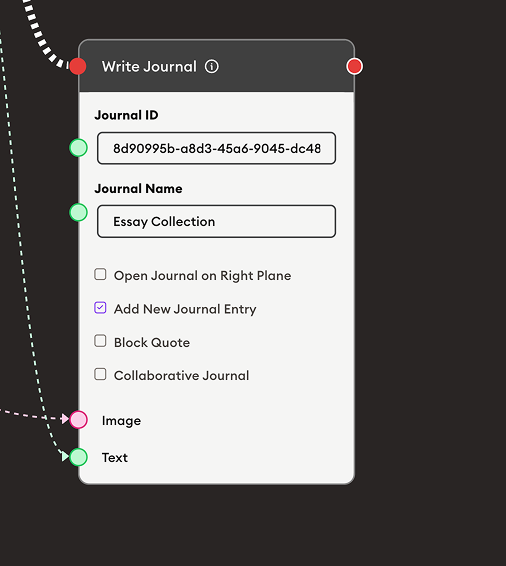
The Write Journal Node appends text or an image to the existing journal. If there is no existing journal, a new journal will be automatically created, and the content will be written accordingly.
Basic Usage
Use Image, Text, Read Journal, Display Text and Write Journal for your process.
Inputs
The Write Journal Node accepts the following inputs:
- Journal ID: Unique identifier for the journal (can be connected from upstream nodes or manually entered).
- Journal Name: Name of the journal for easy identification.
- Image: Image content to append to the journal (optional).
- Text: Text content to append to the journal (optional).
Outputs
The Write Journal Node does not produce direct outputs but modifies the journal data that can be retrieved using the Read Journal node.
Configuration
Journal ID
Enter or connect a unique identifier for the journal. This ID is used to:
- Locate existing journals for appending content
- Create new journals if the ID doesn't exist
- Maintain consistency across multiple Write Journal operations
Journal Name
Provide a descriptive name for the journal to help identify it in the system (e.g., "Famous Bagan", "Student Portfolio", "Research Notes").
Options
- Open Journal on Right Plane: Enable to automatically display the journal in the right panel after writing.
- Add New Journal Entry: Enable to create a new entry in the journal (adds a timestamp or separator).
- Block Quote: Enable to format the text content as a block quote.
- Collaborative Journal: Enable to allow multiple users to contribute to the same journal.
Example Workflows
Travel Journal with Images and Text
Scenario: Create a travel journal that combines images and descriptive text about visited locations.
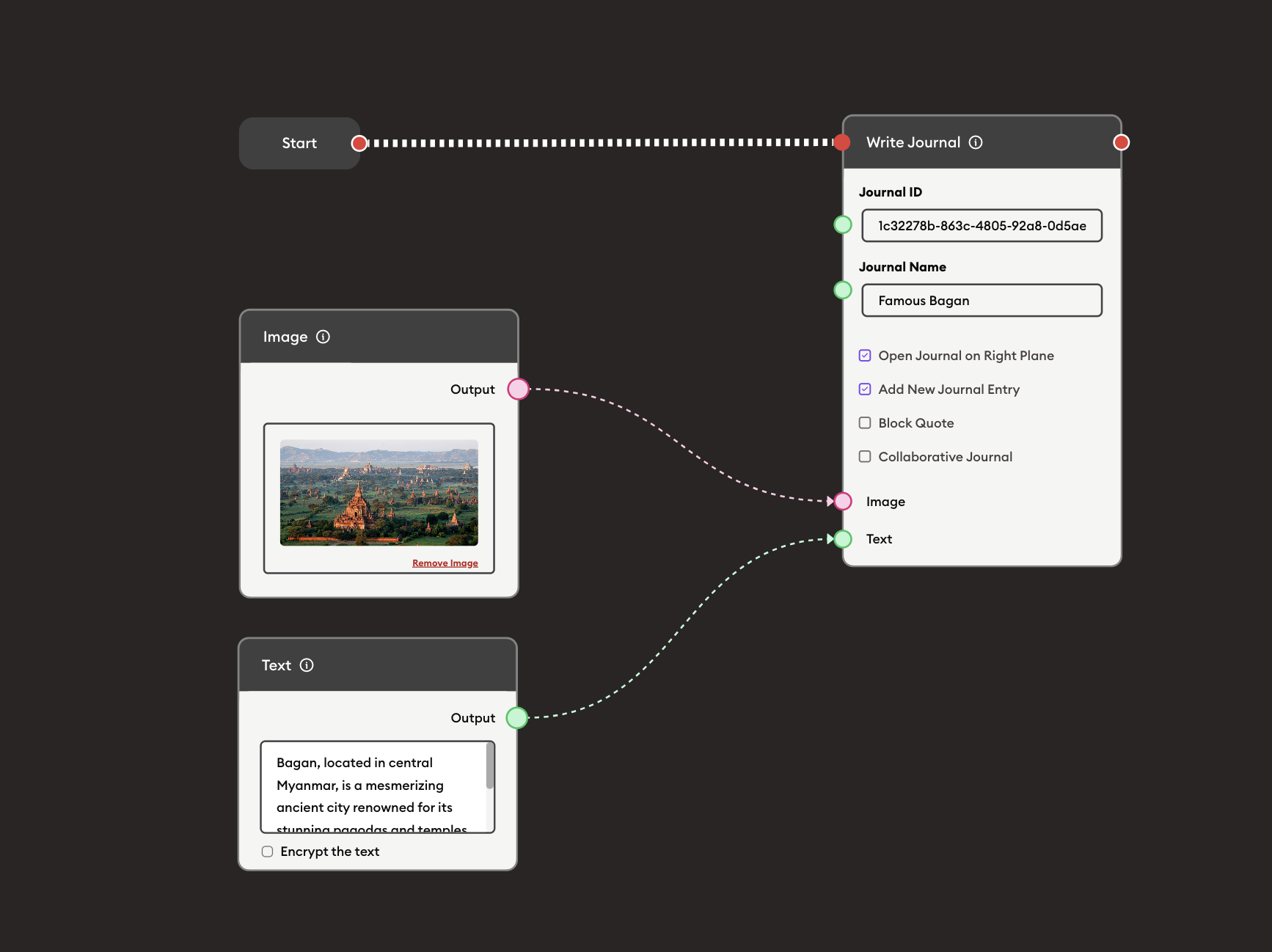
Steps to Create the Flow:
-
Start with the Start Node.
-
Add and connect an Image node with a travel photo:
- Upload an image (e.g., a photo of Bagan temples)
- The Image node will output the image data
-
Add and connect a Text node with descriptive content:
Bagan, located in central Myanmar, is a mesmerizing ancient city renowned for itsstunning pagodas and temples.- Optionally enable Encrypt the text for privacy
-
Add and connect a Write Journal node:
i. Configure Journal ID:
1c32278b-863c-4805-92a8-0d5aeii. Set Journal Name:
Famous Baganiii. Enable Options:
- Check Open Journal on Right Plane to view the journal immediately
- Check Add New Journal Entry to create a timestamped entry
iv. Connect Inputs:
- Connect the Image node's Output to Image input
- Connect the Text node's Output to Text input
-
Result: The journal now contains both the image and text, creating a rich multimedia entry about Bagan.
Benefits:
- Combines visual and textual content in one journal
- Automatically creates journal if it doesn't exist
- Maintains chronological entries with timestamps
- Can be viewed immediately in the right panel
Student Learning Portfolio
Scenario: Build a cumulative student portfolio that tracks learning progress over time.
Steps to Create the Flow:
-
Start with the Start Node.
-
Add a Text Input node for students to enter their reflections.
-
Add an Image node (optional) for students to upload work samples or screenshots.
-
Add a Text node with metadata:
Date: [Current Date]Topic: [Subject Area]Reflection Entry: -
Add and connect a Write Journal node:
i. Configure Journal ID: Use student ID or unique identifier (e.g.,
student-12345-portfolio)ii. Set Journal Name:
[Student Name] Learning Portfolioiii. Enable Options:
- Check Add New Journal Entry for each new reflection
- Check Collaborative Journal if teachers need to add comments
iv. Connect Inputs:
- Connect student text input to Text
- Connect uploaded images to Image (if applicable)
-
Add Read Journal node to display the complete portfolio history.
Use Cases:
- Weekly learning reflections
- Project documentation
- Skill development tracking
- Evidence collection for assessments
Research Notes Compilation
Scenario: Create a collaborative research journal where team members can add findings and images.
Steps to Create the Flow:
-
Start with the Start Node.
-
Add a Form node with fields for:
- Researcher name
- Research topic
- Findings/observations
- Date
-
Add an Image node for uploading charts, graphs, or experimental results.
-
Add and connect a Write Journal node:
i. Configure Journal ID:
research-project-2024ii. Set Journal Name:
Research Project 2024iii. Enable Options:
- Check Add New Journal Entry to separate each contribution
- Check Block Quote to format findings distinctly
- Check Collaborative Journal to allow multiple researchers to contribute
- Check Open Journal on Right Plane for immediate review
iv. Connect Inputs:
- Connect form output to Text
- Connect uploaded images to Image
-
Add Read Journal node to review all research entries.
-
Add Display Text to show confirmation message.
Benefits:
- Centralized research documentation
- Multiple contributors can add entries
- Chronological tracking of research progress
- Combines data visualizations with written observations
- Easy review and retrieval of past findings
Essay Collection
Scenario: Collect and organize student essays with optional images in a centralized journal for review and assessment.
Steps to Create the Flow:
-
Start with the Start Node.
-
Add a Text Input node for students to write or paste their essays:
- Students can type their essay directly
- Enable Math Input if essays contain mathematical expressions
- Enable Handwriting Input for handwritten essay submissions
- Optionally enable Set Character Limit to enforce word count requirements
-
Add an Image Input node (optional) for supporting materials:
- Students can upload diagrams, charts, or illustrations
- Useful for essays requiring visual evidence or creative elements
-
Add and connect a Write Journal node:
i. Configure Journal ID:
8d09925b-a8d8-48e8-9046-dc48ii. Set Journal Name:
Essay Collectioniii. Enable Options:
- Check Add New Journal Entry to separate each student's submission
- Check Open Journal on Right Plane to review submissions immediately
iv. Connect Inputs:
- Connect the Text Input node's Output to Text input
- Connect the Image Input node's Output to Image input (if applicable)
-
Result: All student essays are collected in one organized journal with timestamps, making it easy for teachers to review, grade, and provide feedback.
Benefits:
- Centralized collection of all student essays
- Supports multimedia submissions (text + images)
- Chronological tracking of submissions
- Easy access for grading and feedback
- Can accommodate different input methods (typed, handwritten, math equations)
Use Cases:
- Essay assignments and creative writing
- Research paper submissions
- Argumentative or persuasive writing tasks
- Literature analysis essays
- College application essay drafts