Display Quiz
The Display Quiz node presents interactive quiz questions to users and collects their responses. It displays questions, answer options, and optionally shows correct answers after submission. This node is essential for assessments, knowledge checks, formative evaluations, and interactive learning activities. It works seamlessly with JSON Block nodes to define quiz structure and Text Join nodes to aggregate results.
Basic Usage
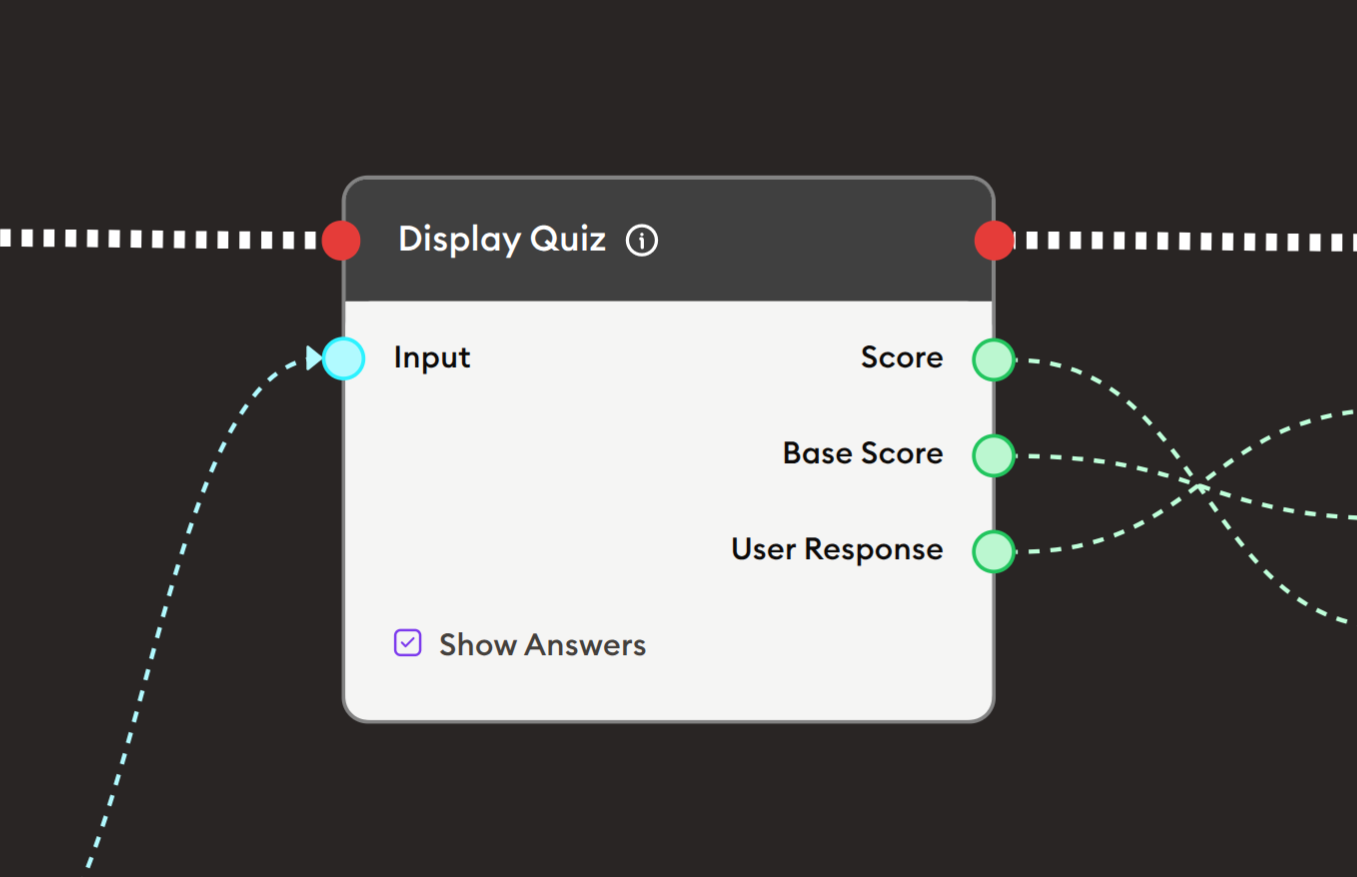
Use the Display Quiz node to present quiz questions to users. Connect a JSON Block node containing quiz data to the Input port, and optionally connect data sources to the Score and User Response ports for displaying results.
Inputs
Input (Green Port)
Quiz Data: Accepts JSON data containing quiz questions and structure.
- Connects to green output ports of JSON-providing nodes (typically JSON Block)
- Receives quiz configuration with questions, options, and correct answers
- Required to define quiz structure
- Must follow specific JSON schema for quiz format
Example Quiz JSON:
{
  "qtiAssessmentItem": {
    "type": "MCQ",
    "title": "Basics of Solar Energy",
    "questions": [
      {
        "question": "What is the primary source of solar energy?",
        "options": ["The Sun", "The Moon", "Stars", "Wind"],
        "correctAnswer": 0
      }
    ]
  }
}
Score (Green Port)
Score Data: Accepts numerical or text score data to display.
- Connects to green output ports from grading or calculation nodes
- Shows user's score/grade
- Optional - can be displayed after quiz submission
- Can be percentage, points, or grade letter
User Response (Green Port)
Response Data: Accepts user's previous responses or feedback.
- Connects to green output ports from processing nodes
- Can display user's answers
- Optional - used for review or feedback
- Useful for showing what user answered
Outputs
Base Score (Green Port)
Raw Score Output: Outputs the user's quiz score.
- Connects to green input ports of subsequent nodes
- Provides numerical score value
- Can be used for grading, branching, or data storage
- Available after quiz submission
User Response (Green Port)
Response Output: Outputs the user's selected answers.
- Connects to green input ports of subsequent nodes
- Provides answer data in structured format
- Can be stored, analyzed, or processed
- Useful for learning analytics
Output (Red Port)
Flow Control: Continues execution after quiz is completed.
- Connects to red input ports of subsequent nodes
- Allows workflow to continue after quiz submission
- Standard flow progression connection
- Triggered when user submits quiz
Configuration
Input Field
Quiz Content: Displays the quiz question and title from connected JSON data.
Features:
- Automatically renders questions from JSON
- Displays question text
- Shows multiple choice options
- Interactive radio buttons or checkboxes
- Clean, accessible interface
Example Display:
## Basic Of Solar Energy

Question content appears here with answer options:
○ Option A
○ Option B
○ Option C
○ Option D
Show Answers
Checkbox Option: Controls whether correct answers are displayed after submission.
Unchecked (Default):
- Correct answers not shown
- User only sees their score
- Good for formal assessments
- Prevents answer sharing
Checked:
- Correct answers displayed after submission
- Shows which options were right/wrong
- Good for learning and practice
- Provides immediate feedback
- Helps students learn from mistakes
Example Workflows
Basic Quiz Flow
Scenario: Create a simple quiz with questions and scoring.
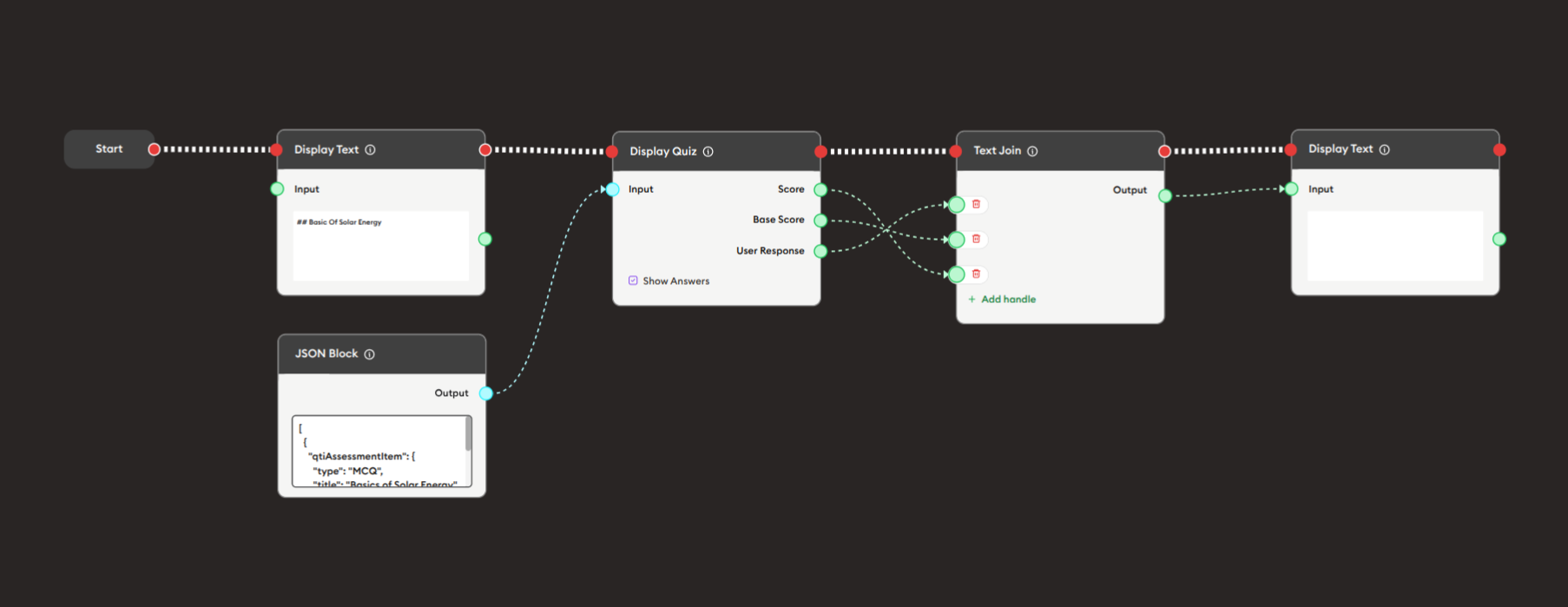
Steps to Create the Flow:
-
Add a Start Node.
-
Add a Display Text node:
- Input: "## Basic Of Solar Energy"
- Provides quiz introduction
-
Add a JSON Block node:
- Define quiz structure with questions
- Include question text, options, and correct answers
- Format according to quiz JSON schema
-
Add a Display Quiz node:
i. Connect the quiz data:
- JSON Block Output (green) → Display Quiz Input (green)
ii. Configure options:
- Leave "Show Answers" unchecked for assessment
- Or check it for practice mode
-
Add a Text Join node:
- Connect Display Quiz outputs to aggregate results
- Base Score → Text Join
- User Response → Text Join
-
Add final Display Text node:
- Show completion message or results
- Connect Text Join output
-
Connect flow control:
- Start → Display Text → Display Quiz → Text Join → Display Text (red ports)
Preview:
[Start] → [Display Text: Quiz title]
       → [Display Quiz] ← (Quiz data from JSON Block)
       → [Text Join: Aggregate results]
       → [Display Text: Results]
Result: Users see quiz questions, answer them, submit, and receive scores with optional correct answers shown.
Related Nodes
- JSON Block: Provides quiz data structure (source node)
- Text Join: Aggregates quiz results and scores
- Display Text: Shows instructions, feedback, and results
- Branching Node: Routes flow based on quiz scores
- Data Dump: Stores quiz results for analytics
- AI General Feedback: Generates personalized feedback on quiz performance
- Form: Alternative input method for different question types
- Progress Checkpoint: Marks quiz completion milestones
Summary
The Display Quiz node is essential for interactive assessments:
✓ Interactive: Engaging multiple-choice quiz interface
✓ Automated: Instant scoring and grading
✓ Flexible: Practice or formal assessment modes
✓ Data-Rich: Outputs scores and responses for analysis
✓ Educational: Optional answer display for learning
Master the Display Quiz node to create effective assessments that measure learning, provide feedback, and adapt to student needs for optimal educational outcomes.