Image Input
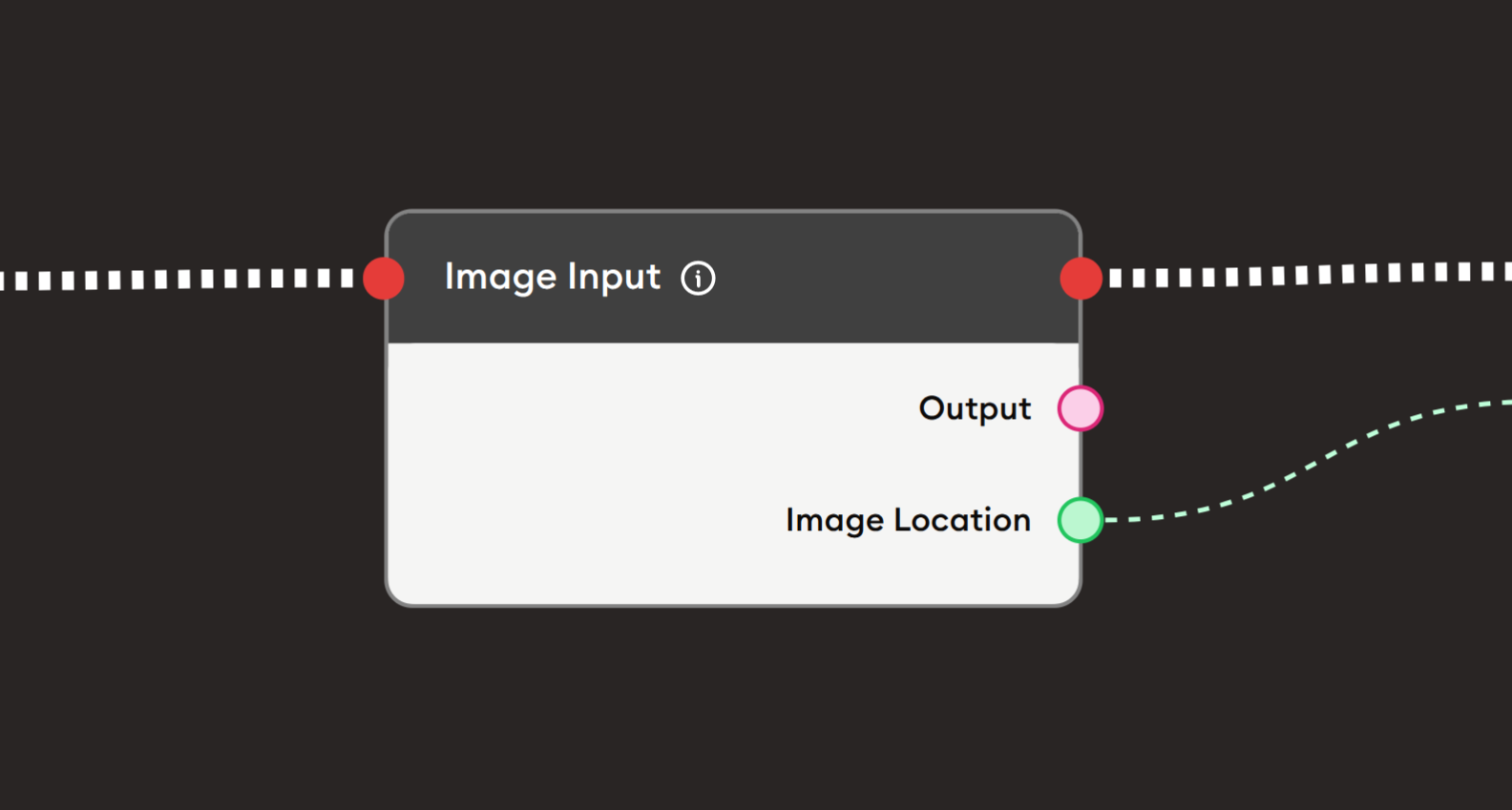
The Image Input node allows users to upload images during workflow execution. It provides an interface where users can select and upload image files from their device, which can then be processed, analyzed, displayed, or stored. The node is essential for activities requiring visual input such as assignments, photo submissions, visual analysis exercises, art projects, and any scenario where users need to provide image data.
Basic Usage
Use the Image Input node to collect images from users. Users interact with the upload interface, select an image file, and the image data is passed to subsequent nodes for processing, analysis, or display.
Inputs
The Image Input node does not have input ports for receiving data from other nodes. It operates as a user interaction node where users directly upload image files.
Outputs
Output (Pink Port)
Image Data: Outputs the uploaded image.
- Connects to pink input ports of subsequent nodes
- Contains the uploaded image file
- Available after user uploads an image
- Compatible with image processing nodes
- Can be displayed, analyzed, or stored
Compatible nodes:
- Display Image
- Describe Image
- AI analysis nodes
- Image processing nodes
Image Location (Green Port)
Image URL/Path: Outputs the location or URL of the uploaded image.
- Connects to green input ports of subsequent nodes
- Contains file path or URL string
- Text-based reference to image
- Can be used for tracking or storage
- Useful for logging or database records
Output (Red Port)
Flow Control: Continues execution to the next node after image is uploaded.
- Connects to red input ports of subsequent nodes
- Standard flow progression
- Triggered when user uploads image and proceeds
- Allows workflow continuation
Configuration
The Image Input node has a simple, user-friendly interface:
Upload Interface
Image upload area where users select files.
- Click to browse files
- Or drag and drop image files
- Supports common image formats (JPG, PNG, GIF, etc.)
- Visual feedback on upload
- Shows uploaded image preview (if available)
- One image at a time
User Experience:
- User sees upload area
- Clicks to open file browser
- Selects image from device
- Image uploads
- Preview appears (optional)
- User proceeds with workflow
Example Workflows
Simple Image Upload and Display
Scenario: User uploads an image and sees it displayed back.
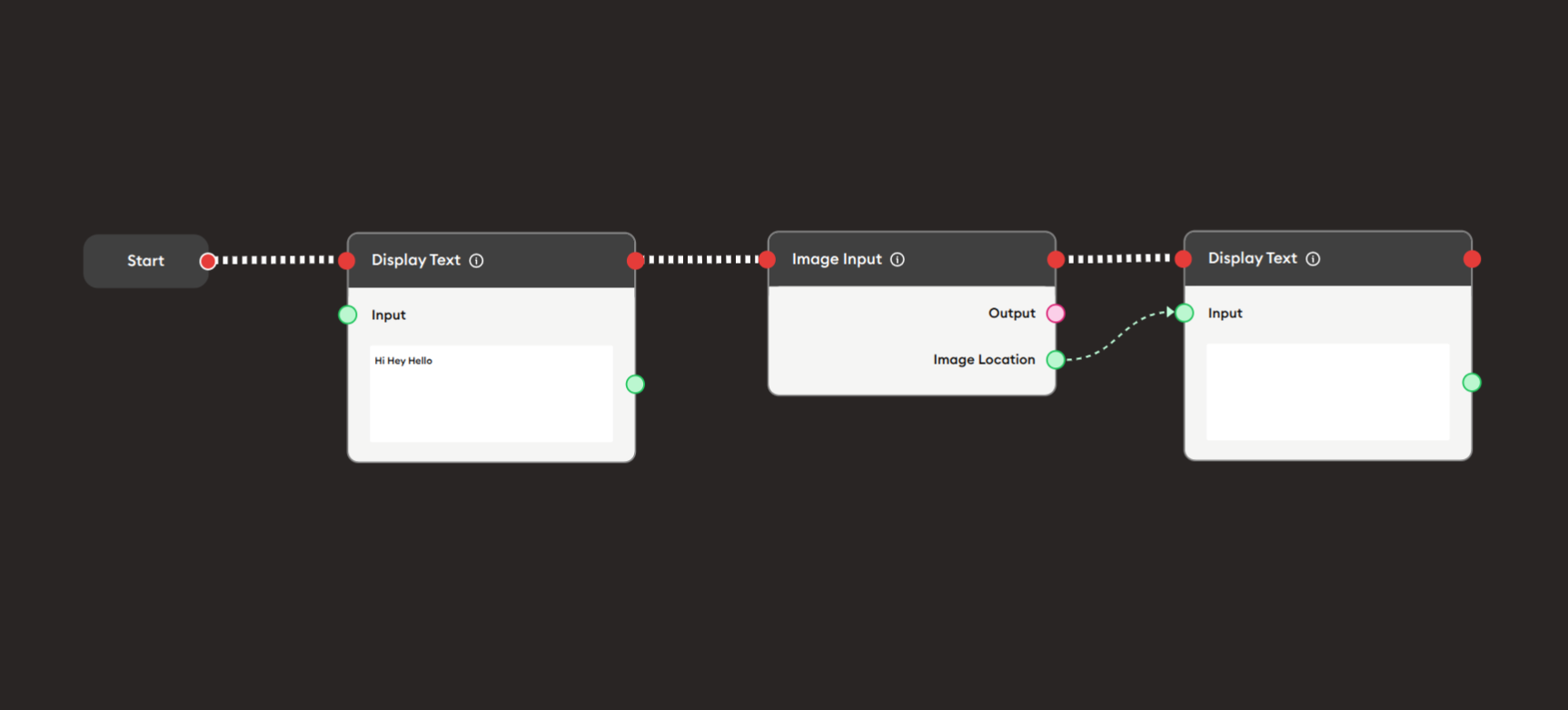
Steps to Create the Flow:
-
Add a Start Node.
-
Add a Display Text node (first):
- Input: "Hi Hey Hello"
- Shows greeting to user
-
Add an Image Input node:
- User uploads their image
- No configuration needed
-
Add a Display Text node (second):
- Connect Image Location output (green) to Input
- Shows the image location/path
- Or displays confirmation message
-
Connect flow control:
- Start → Display Text → Image Input → Display Text (red ports)
Preview:
[Start] → [Display Text: "Hi Hey Hello"]
       → [Image Input: User uploads image]
       → [Display Text: Show image location/confirmation]
Result: User sees greeting, uploads image, sees confirmation.
Related Nodes
- Image: Display pre-loaded images in workflow
- Display Image: Show uploaded images to users
- Describe Image: AI analysis of uploaded images
- PDF Upload: Alternative for document uploads
- Audio Input: For audio file uploads
- File Uploader: For general file uploads
- Text Input: For text-based user input
- Form: For structured multi-field input including files
Summary
The Image Input node is essential for collecting user images:
✓ User-Friendly: Simple upload interface
✓ Flexible: Supports common image formats
✓ Powerful: Enables visual learning activities
✓ Dual Output: Image data + location reference
✓ Interactive: Engages users with visual content
Master the Image Input node to create engaging workflows that collect user photos, enable visual assignments, facilitate image-based assessments, support art and design projects, and enable any learning or business activity requiring user-provided images. Combine with AI analysis nodes for automated image evaluation and feedback.