Display xAPI Content
The Display xAPI Content node displays SCORM or xAPI-compliant learning content packages (typically ZIP files) in your workflow. It enables embedding of interactive e-learning content created with authoring tools like Articulate Storyline, Adobe Captivate, or other SCORM/xAPI exporters. This node is essential for integrating external e-learning content, tracking learner interactions, and incorporating professionally-designed courses into your workflows.
Basic Usage
Use the Display xAPI Content node to display uploaded SCORM/xAPI content packages. Upload a ZIP file containing the e-learning content, configure display options, and the interactive content will be rendered for users.
Inputs
The Display xAPI Content node does not have input ports for receiving data from other nodes. Content is uploaded directly through the node's configuration interface.
Outputs
Output (Green Port)
Content URL/Reference: Outputs a reference to the displayed content.
- Connects to green input ports of subsequent nodes
- Provides content identifier or URL
- Can be used for tracking or display confirmation
- Available after content is uploaded
Output (Red Port)
Flow Control: Continues execution to the next node after content is displayed.
- Connects to red input ports of subsequent nodes
- Allows workflow to continue after content loads
- Standard flow progression connection
- Note: Flow continues when content loads, not necessarily when user completes content
Configuration
Content Upload Area
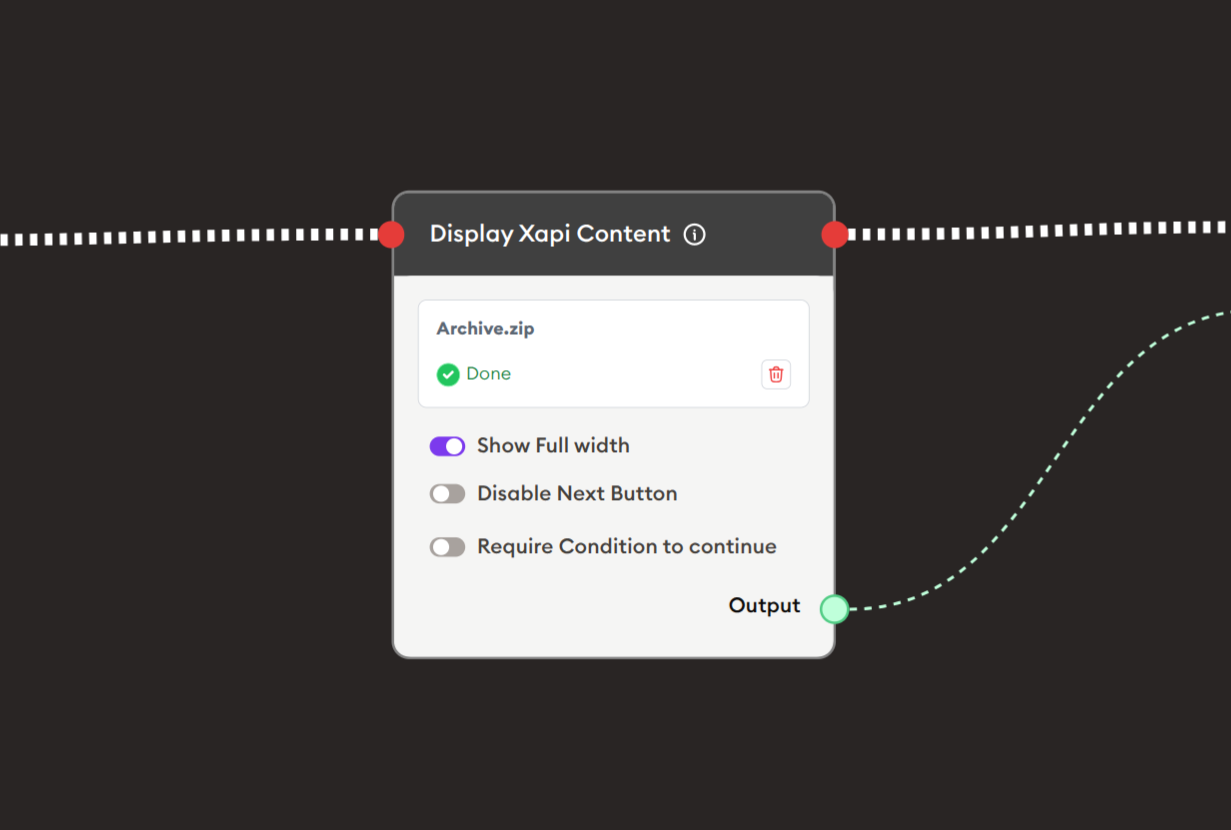
File Upload Section: Upload SCORM/xAPI content packages.
File Display:
- Shows uploaded filename (e.g., "Archive.zip")
- Green checkmark indicates successful upload (✓ Done)
- Trash icon to remove uploaded file
- Drag & drop or browse to upload
Supported Formats:
- ZIP files containing SCORM packages
- ZIP files containing xAPI packages
- Must include proper manifest files
- Standard SCORM/xAPI structure required
Show Full width
Toggle Option: Controls the display width of the content.
Off (Default):
- Content displays in standard width container
- Maintains consistent layout with other nodes
- Suitable for most content
On:
- Content expands to full available width
- Uses entire screen width
- Ideal for immersive learning experiences
- Better for content designed for wide displays
- Provides maximum screen real estate
Disable Next Button
Toggle Option: Controls whether the Next button is available immediately.
Off (Default):
- Next button available immediately
- Users can proceed without completing content
- Flexible navigation
On:
- Next button disabled initially
- Users must interact with or complete content
- Enforces content engagement
- Next button enables based on content completion signals
Require Condition to continue
Toggle Option: Enforces content completion requirements.
Off (Default):
- Users can proceed freely
- No completion requirements
- Optional content viewing
On:
- Users must meet specific conditions to continue
- Typical conditions:
- Complete all content pages/slides
- Pass quiz within content
- Meet time requirements
- Achieve minimum score
- Enforces thorough engagement
- Based on xAPI statements from content
Example Workflows
Basic xAPI Content Display
Scenario: Display an e-learning module to students.
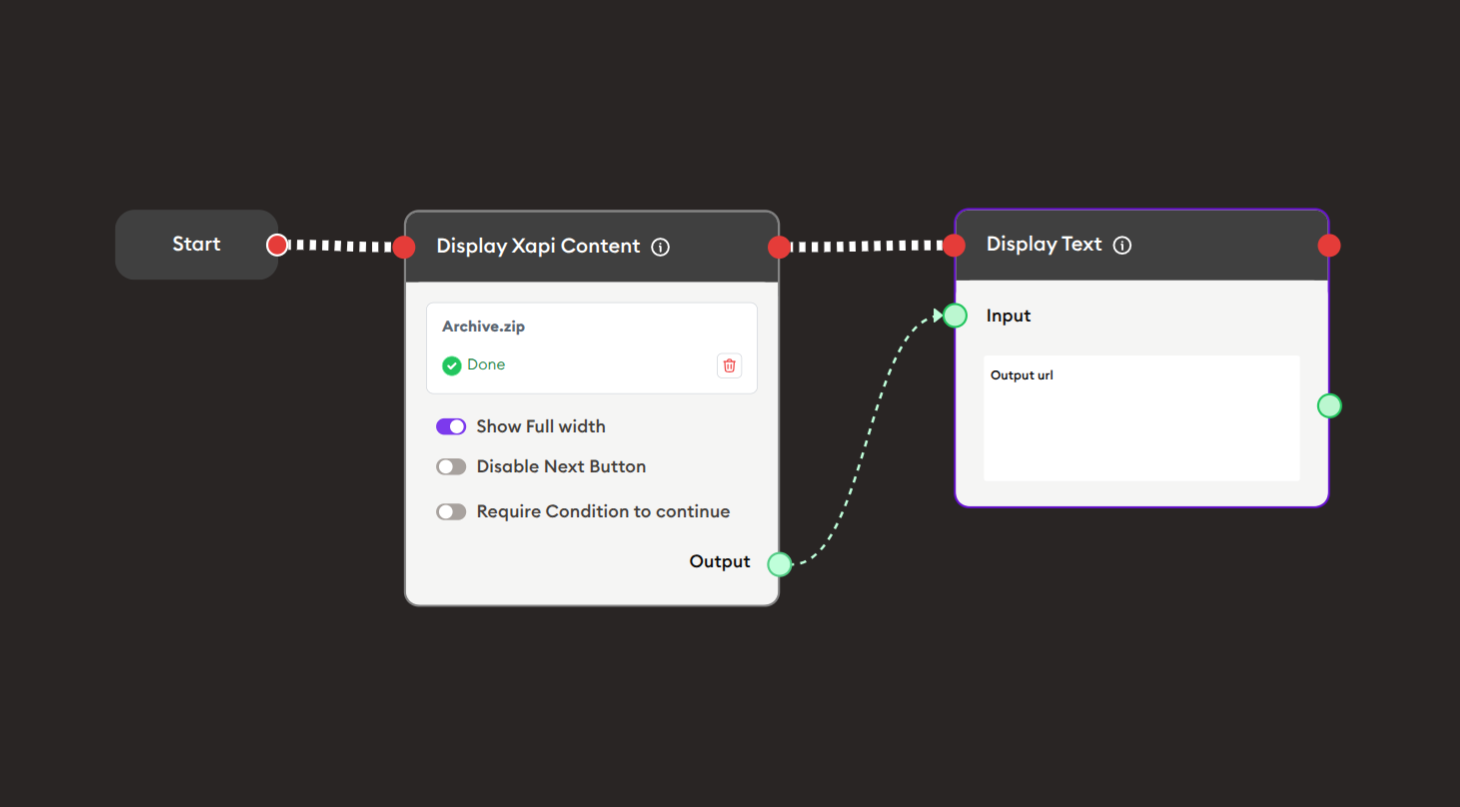
Steps to Create the Flow:
-
Add a Start Node.
-
Add a Display xAPI Content node:
i. Upload content:
- Click upload area or drag & drop
- Select ZIP file (e.g., "Archive.zip")
- Wait for green checkmark (✓ Done)
ii. Configure options:
- Show Full width: ON (for immersive experience)
- Disable Next Button: OFF (allow flexibility)
- Require Condition to continue: OFF (optional content)
-
Add Display Text node:
- Connect Display xAPI Content Output (green) → Display Text Input (green)
- Shows completion confirmation or URL
-
Connect flow control:
- Start → Display xAPI Content → Display Text (red ports)
Preview:
[Start] → [Display xAPI Content: Interactive e-learning module]
       → [Display Text: "Content URL: {{OUTPUT_URL}}"]
Result: Users interact with the SCORM/xAPI content embedded in the workflow, then see confirmation.
Related Nodes
- H5P: Alternative for H5P interactive content
- Display HTML: For custom HTML-based content
- Online Video Player: For video-only content
- Display Text: Provide instructions and context
- Progress Checkpoint: Mark content completion
- Data Dump: Store xAPI completion data
- Branching Node: Route based on completion status
- Display Quiz: Alternative assessment method
Summary
The Display xAPI Content node brings professional e-learning to your workflows:
✓ Professional: Industry-standard SCORM/xAPI content
✓ Trackable: Built-in completion and performance tracking
✓ Flexible: Configurable display and completion options
✓ Compatible: Works with major authoring tools
✓ Immersive: Full-width option for engaging experiences
Master the Display xAPI Content node to integrate professionally-designed e-learning courses, interactive simulations, and standards-compliant training content into your educational workflows.