PDF Display Node
The PDF Display node renders PDF documents directly within your workflow, allowing learners to view PDF content without leaving the flow interface. This node provides an embedded PDF viewer with configurable display options for optimal reading experience.
Basic Usage
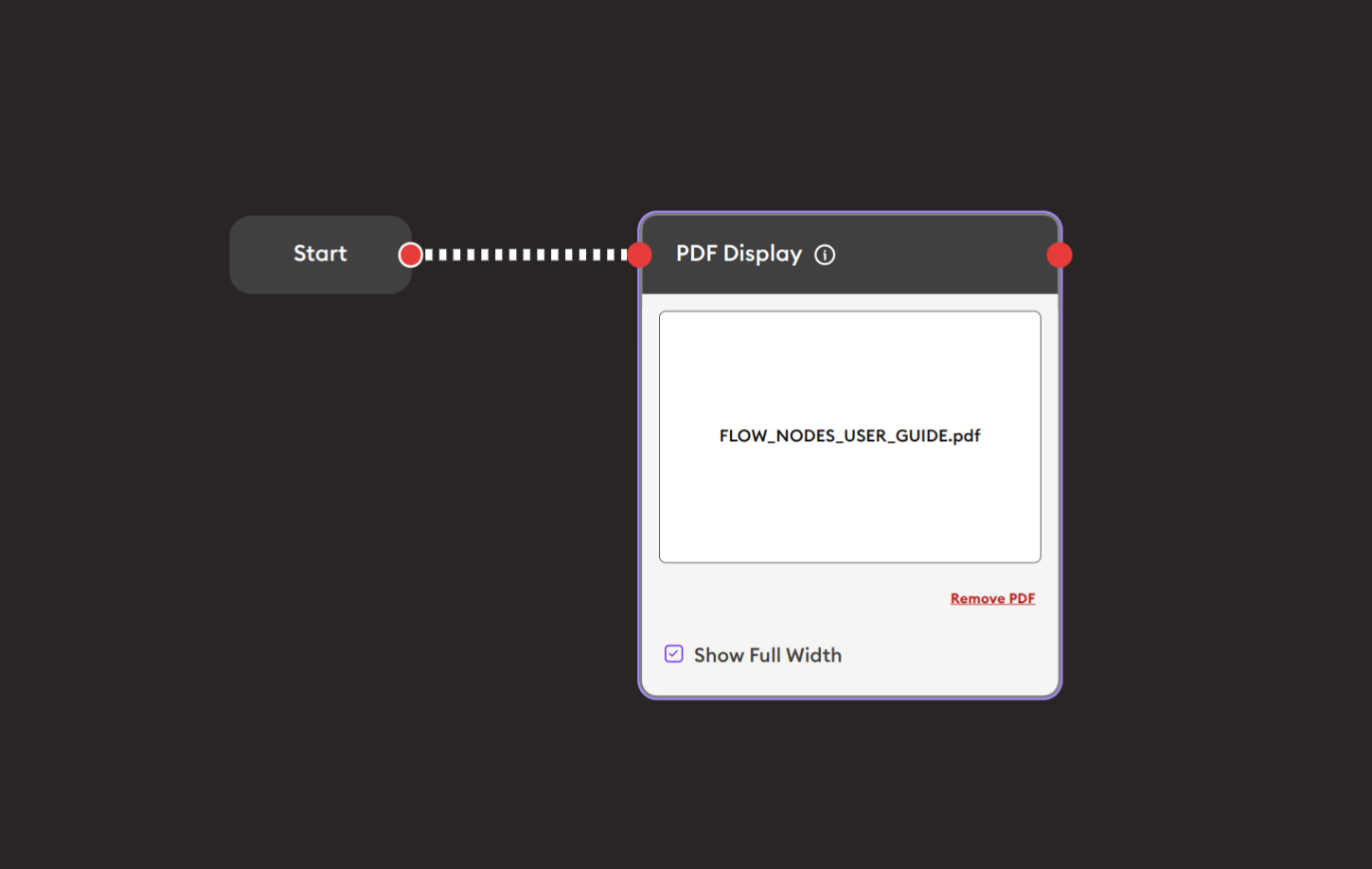
Use the Start node and PDF Display node to display PDF documents in your workflow.
Inputs
The PDF Display node accepts the following input:
- Flow Control (Red Port): Controls when the PDF display is shown in the workflow execution sequence.
Outputs
- Flow Control (Red Port): Continues workflow execution after the PDF has been displayed.
Configuration
PDF File Upload
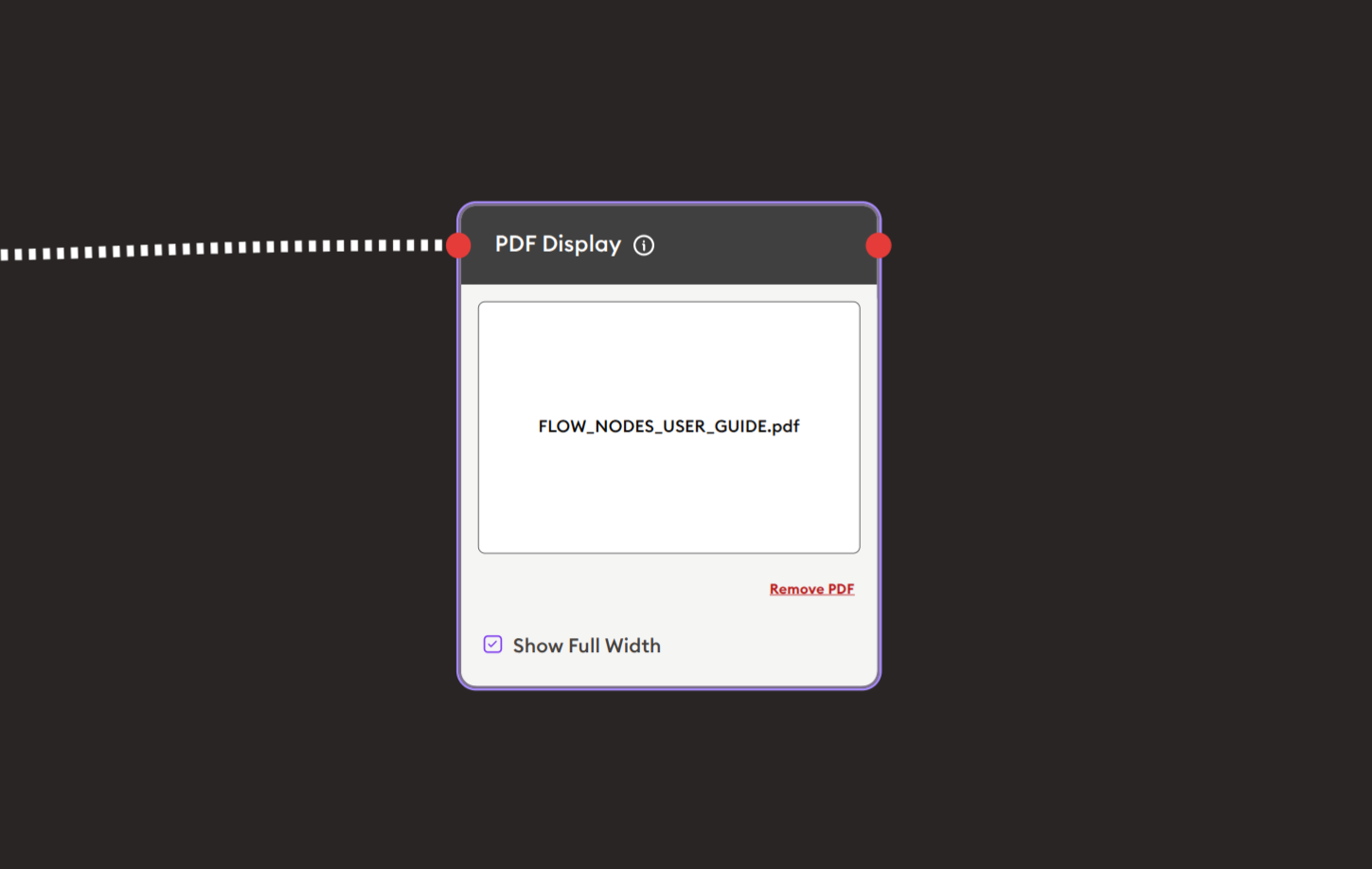
The main content area displays the uploaded PDF file:
- File Display Area: Shows the filename of the currently uploaded PDF (e.g., "FLOW_NODES_USER_GUIDE.pdf")
- Upload Interface: White rectangular area where PDF files can be selected or dropped
- Remove PDF Button: Red "Remove PDF" link in the bottom-right corner allows you to remove the currently uploaded file
Supported Format:
- PDF (.pdf) files
To Upload a PDF:
- Click on the white upload area to browse for files
- Or drag and drop a PDF file directly into the upload area
- The filename will appear once uploaded successfully
Show Full Width
- Checkbox Option: "Show Full Width" (marked with purple checkmark in example)
- When Enabled: PDF viewer expands to use the full width of the display area, maximizing viewing space
- When Disabled: PDF displays at a standard width with margins
Example Workflows
Basic Document Display
Scenario: Display a user guide or course material as a PDF document.
Workflow Structure:
Steps to Create the Flow:
-
Start with the Start Node
-
Add and connect a PDF Display node:
- Upload your PDF file using the upload area
- Enable "Show Full Width" if you want the PDF to use maximum screen space
- The PDF will be displayed to learners when they reach this node
Use Case: Course syllabus, reading materials, reference documents
Related Nodes
- H5P: Display interactive H5P content including presentations with embedded PDFs
- Online Video Player: Display video content as an alternative or supplement to PDF documents
- Display Text: Display text-based content without PDF formatting
- Document Download: Allow learners to download PDF files for offline viewing
- PDF Upload: Collect PDF uploads from learners rather than displaying to them
- Display HTML: Display web-based content as an alternative to PDF format
- Form: Collect responses about the PDF content
- Display Quiz: Assess comprehension of PDF material
Summary
The PDF Display node is essential for delivering document-based content within workflows. Whether you're presenting training materials, course readings, reference documents, or policy manuals, this node provides a seamless embedded viewing experience. By combining it with assessment nodes (Form, Display Quiz), AI assistance (Knowledge Bot, AI General Prompt), and tracking capabilities (xAPI Report), you can create comprehensive document-based learning experiences that engage learners and track their progress effectively.