xAPI Report
The xAPI Report node generates structured xAPI (Experience API) statements and reports for learning activities. It creates standardized learning data that can be sent to Learning Record Stores (LRS) for tracking learner progress, assessment results, and activity completion. The node supports configurable verb types, objects, and result data, enabling comprehensive learning analytics and reporting aligned with xAPI specifications.
Basic Usage
Use the xAPI Report node to create xAPI statements that document learning experiences. Connect inputs for description and evidence data, configure the statement parameters (verb, object, competency, etc.), and generate standardized learning records that can be tracked and analyzed.
Inputs
Input (Green Port)
Statement Data: Receives text data to populate the xAPI report fields.
- Connects to green output ports from previous nodes
- Can be used for description, evidence, or other report content
- Typically connected to AI-generated analysis or assessment results
- Supports dynamic data from workflow outputs
Outputs
Output (Green Port)
xAPI Statement Data: Outputs the generated xAPI statement.
- Connects to green input ports of subsequent nodes
- Contains structured xAPI statement JSON
- Can be sent to LRS systems
- Used for further processing or display
- Includes all configured statement components
Output (Red Port)
Flow Control: Continues execution to the next node after the xAPI report is generated.
- Connects to red input ports of subsequent nodes
- Standard flow progression
- Triggered after statement creation
- Allows workflow continuation
Configuration
The xAPI Report node provides comprehensive configuration options for creating detailed xAPI statements:
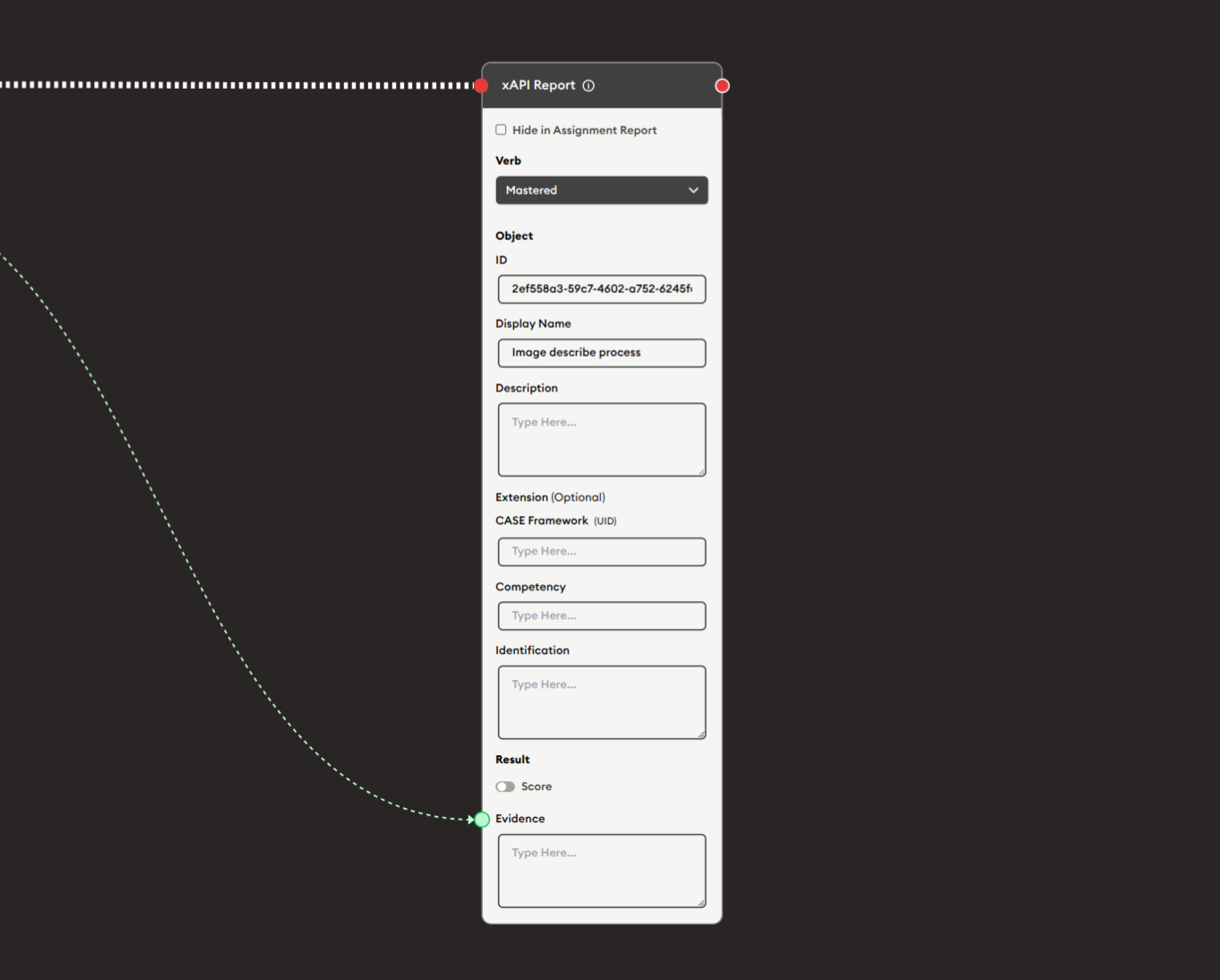
Hide in Assignment Report
Checkbox option to exclude this report from assignment views.
- ☐ Unchecked: Report visible in assignment reports
- ☑ Checked: Report hidden from assignment display
- Use for internal tracking only
- Prevents learner-facing visibility
Verb
Dropdown to select the xAPI verb (action type).
Options:
- Patterned: Default verb option
- Other standard xAPI verbs (experienced, completed, passed, failed, answered, attempted, etc.)
Purpose:
- Defines the action being recorded
- Standard xAPI vocabulary
- Determines statement meaning
- Essential for analytics
Example:
Verb: "completed" → Learner completed the activity
Verb: "passed" → Learner passed the assessment
Verb: "answered" → Learner answered a question
Object
Section defining what the learning activity is about.
ID
Unique identifier for the learning object.
- Text input field
- Required for xAPI compliance
- Typically a URI or UUID
- Must be unique per activity
- Example:
2ef568cb-59c7-4602-c782-6246f
Display Name
Human-readable name for the activity.
- Text input field
- Descriptive title
- Visible in reports
- Example:
Image describe process
Description
Detailed description of the learning activity.
- Multi-line text area
- Supports placeholder text "Type Here..."
- Explains activity purpose
- Context for the statement
- Can include instructions or objectives
Extension (Optional)
Custom extension data for additional context.
- Optional text field
- Allows custom key-value pairs
- Extends standard xAPI
- Use for platform-specific data
- Example: Custom tracking IDs, course codes
CASE Framework
Competency and Standards metadata.
- Integration with CASE (Competency and Academic Standards Exchange)
- Links activities to competency frameworks
- Optional field with info icon (ⓘ)
- Supports standards alignment
- Text input for framework identifiers
Competency
Specific competency or learning objective being assessed.
- Multi-line text area
- Describes skills or knowledge
- Maps to learning outcomes
- Used for competency-based tracking
- Example: "Analyze and describe visual content with contextual understanding"
Identification
Additional identification or tracking information.
- Multi-line text area
- Custom identification fields
- Learner IDs, session IDs, etc.
- Supplementary tracking data
- Platform-specific identifiers
Result
Assessment results and scoring information.
Radio Button Options:
○ Score
- Numeric scoring option
- For graded assessments
- Includes score value
- Standard xAPI result type
● Evidence
- Selected option (filled radio button)
- For evidence-based assessment
- Supports descriptive evidence
- Non-numeric evaluation
Evidence Text Area
Multi-line field for evidence description.
- Active when "Evidence" is selected
- Placeholder: "Type Here..."
- Describes assessment evidence
- Can include AI-generated feedback
- Supports detailed analysis
- Connected to workflow inputs
Example Workflows
AI Image Analysis with xAPI Tracking
Scenario: Analyze an image and track the learning activity via xAPI.
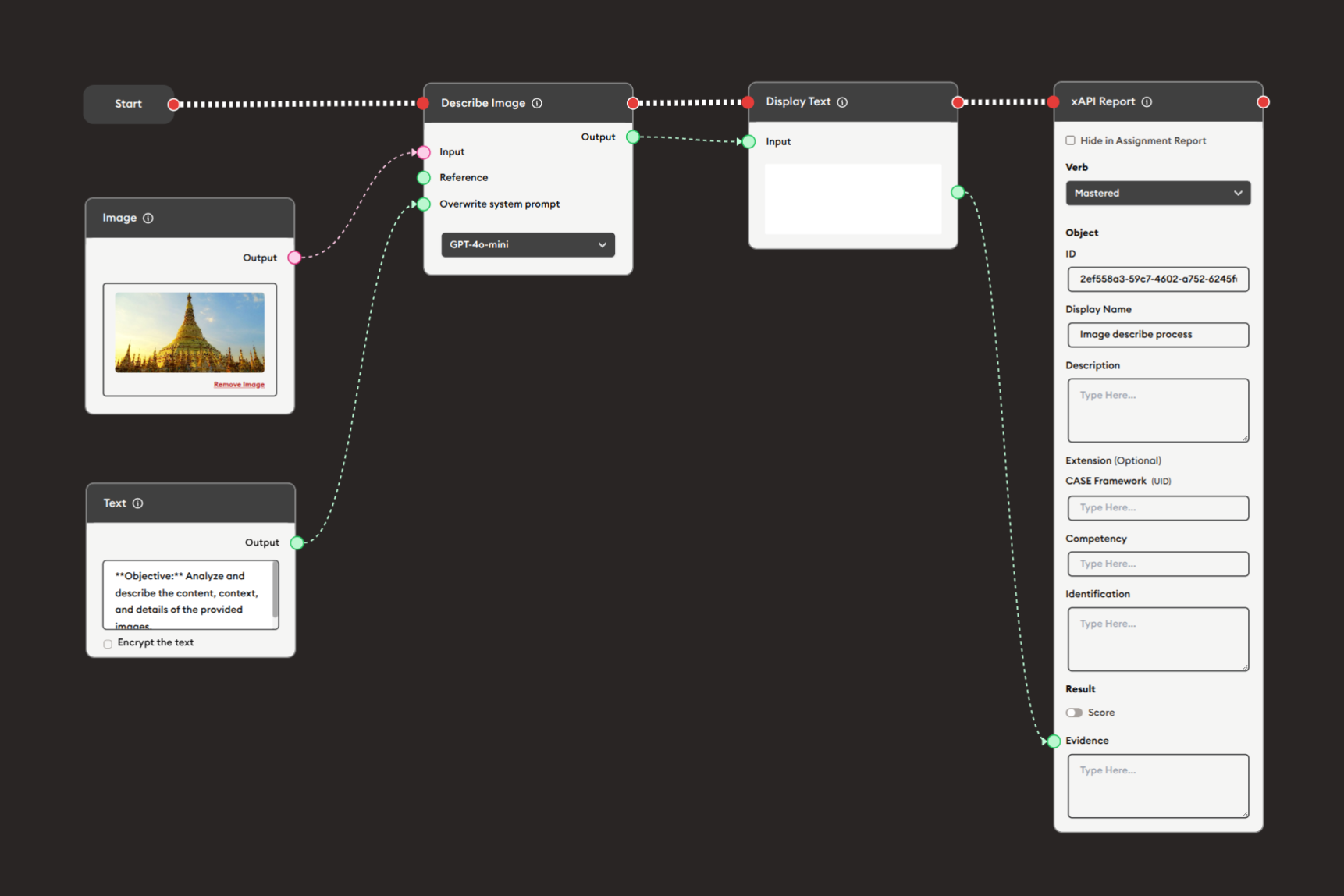
Steps to Create the Flow:
-
Add a Start Node.
-
Add an Image node:
- Upload or provide an image (e.g., golden temple)
-
Add a Text node:
- Create the analysis prompt
- Example:
**Objective:** Analyze and describe the content, context, and details of the provided images... - Check "Encrypt the text" if needed
-
Add a Describe Image node:
- Connect Image node output to Input port
- Connect Text node output to Reference port
- Select model: "GPT-4o-mini"
- This generates the image analysis
-
Add a Display Text node:
- Show the analysis to the user
- Connect Describe Image output to Input
-
Add an xAPI Report node:
i. Configure the report:
- Verb: "Patterned" (or "completed")
- Object ID:
2ef568cb-59c7-4602-c782-6246f - Display Name: "Image describe process"
- Description: Context about the activity
- Competency: "Visual analysis and description skills"
- Result: Select "Evidence" radio button
- Connect Describe Image output to Evidence field
ii. Connect inputs:
- Connect Display Text output to xAPI Report input port
-
Connect flow control:
- Start → Image → Describe Image → Display Text → xAPI Report (red ports)
Preview:
[Start] → [Image: Golden temple]
       → [Text: Analysis prompt]
       → [Describe Image: AI analyzes image]
       → [Display Text: Show analysis to user]
       → [xAPI Report: Record learning activity with evidence]
Result: The image analysis is performed, shown to the user, and tracked as an xAPI statement with the AI-generated analysis as evidence.
Related Nodes
- Display xAPI Content: Display SCORM/xAPI packages that generate statements
- Retrieve xAPI Data Statement: Fetch existing xAPI statements from LRS
- Data Dump: Store xAPI statements in database
- AI General Feedback: Generate evidence for xAPI reports
- Display Quiz: Create assessments that can be tracked via xAPI
- Form: Collect data to be tracked as learning evidence
Summary
The xAPI Report node is essential for learning activity tracking:
✓ Standards-Based: Follows xAPI specifications
✓ Comprehensive: Tracks verbs, objects, results, competencies
✓ Flexible: Supports score and evidence-based results
✓ Interoperable: Works with any xAPI-compliant LRS
✓ Analytics-Ready: Enables learning analytics and reporting
Master the xAPI Report node to create robust learning tracking systems that document learner progress, assess competencies, generate evidence-based reports, and integrate with learning analytics platforms for data-driven educational insights.