PDF Upload
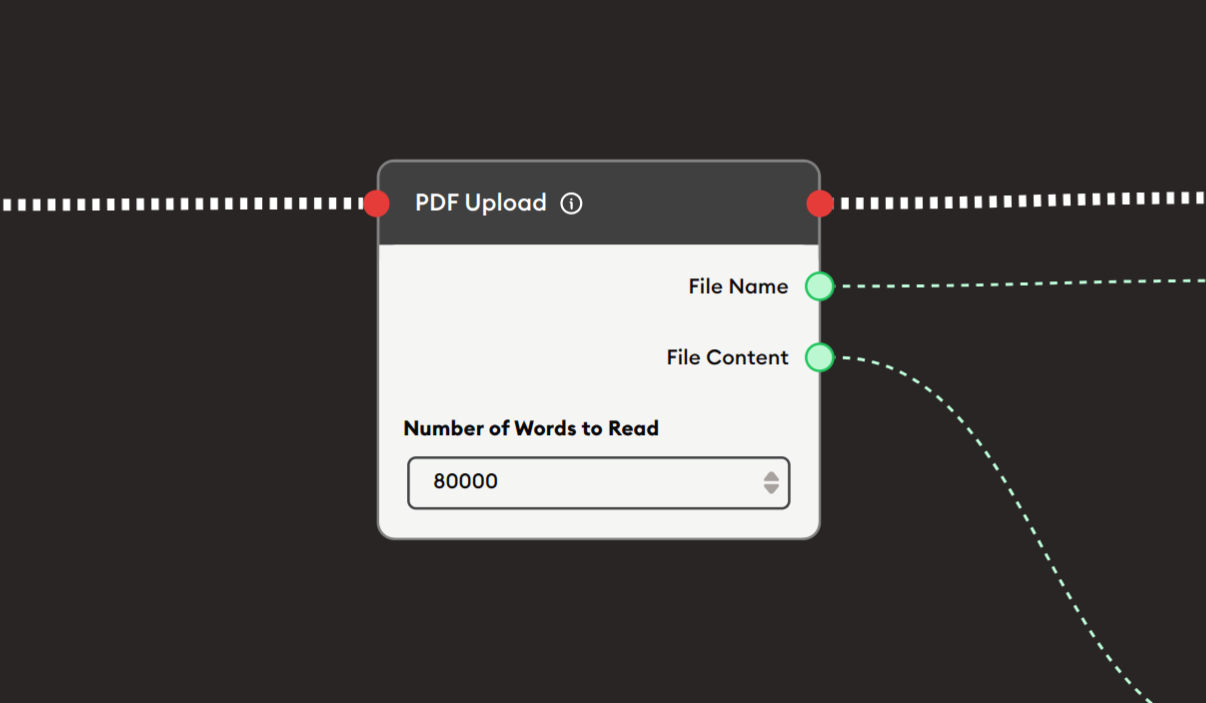
The PDF Upload node allows users to upload PDF documents during workflow execution and extracts text content from those documents. It provides outputs for both the filename and the extracted file content, making it ideal for document analysis, content processing, assignment submissions, reading comprehension assessments, and any workflow that needs to process user-provided PDF documents.
Basic Usage
Use the PDF Upload node to allow users to upload PDF files and extract their content. The node provides the filename and extracted text content as outputs that can be displayed, processed, or analyzed by subsequent nodes.
Inputs
The PDF Upload node does not have input ports for receiving data from other nodes. It operates as a user input collection node where users upload files during workflow execution.
Outputs
File Name (Green Port)
Filename Output: Outputs the name of the uploaded PDF file.
- Connects to green input ports of subsequent nodes
- Provides the original filename with extension
- Can be displayed to users or stored for reference
- Example: "research-paper.pdf", "assignment-1.pdf"
File Content (Green Port)
Extracted Text Output: Outputs the text content extracted from the PDF.
- Connects to green input ports of subsequent nodes
- Contains all text extracted from the PDF document
- Can be processed by AI nodes, displayed, or analyzed
- Maintains text order from PDF
- Amount controlled by "Number of Words to Read" setting
Configuration
Number of Words to Read
Numeric Input Field: Specifies the maximum number of words to extract from the PDF.
Default Value: 80000
Purpose:
- Limits the amount of text extracted
- Controls processing load
- Prevents overwhelming downstream nodes
- Useful for large documents
Usage:
- Full Documents: Use high value (80000+) for complete extraction
- Summaries: Use lower value (1000-5000) for previews
- Sample Text: Use very low value (500-1000) for quick checks
Considerations:
- Larger values may slow processing
- Consider downstream node limits (especially AI nodes)
- Balance between completeness and performance
- Test with typical document sizes
Example Workflows
Basic PDF Upload and Display
Scenario: Allow users to upload a PDF and display its content.
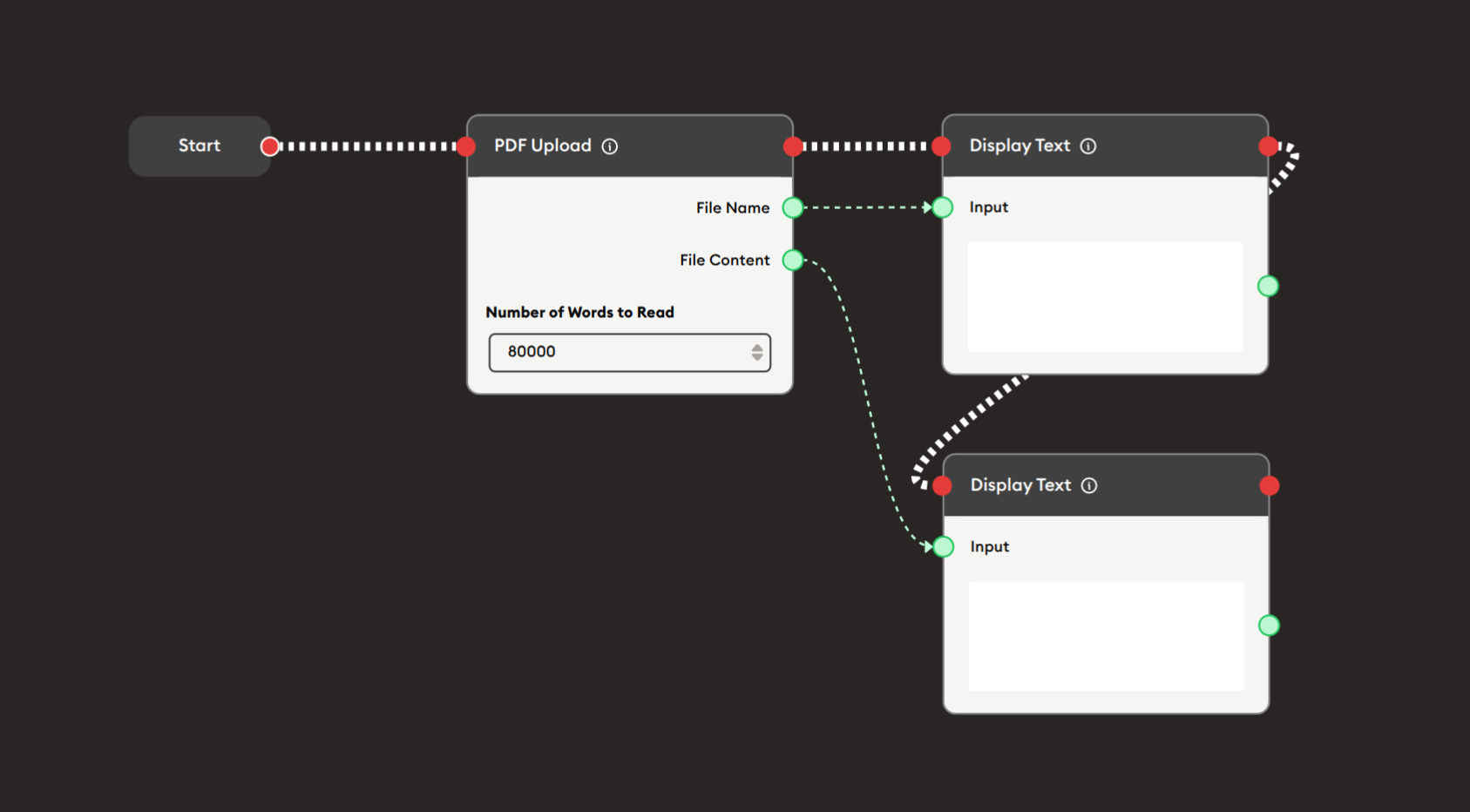
Steps to Create the Flow:
-
Add a Start Node.
-
Add a PDF Upload node:
i. Configure settings:
- Set "Number of Words to Read": 80000 (for full document)
-
Add Display Text nodes:
i. First Display Text (for filename):
- PDF Upload File Name (green) → Display Text Input (green)
- Shows uploaded filename to confirm upload
ii. Second Display Text (for content):
- PDF Upload File Content (green) → Display Text Input (green)
- Shows extracted text content
-
Connect flow control:
- Start → PDF Upload → Display Text → Display Text (red ports)
Preview:
[Start] → [PDF Upload: User uploads document]
       → [Display Text: "You uploaded: filename.pdf"]
       → [Display Text: Shows extracted content]
Result: Users upload a PDF, see confirmation of filename, and view the extracted text content.
Related Nodes
- File Uploader: Generic file upload (not PDF-specific)
- Display Text: Display uploaded filename and content
- AI General Prompt: Process PDF content with AI
- AI General Feedback: Grade PDF submissions
- Text Join: Combine PDF content with other text
- Data Dump: Store uploaded PDF data
- Branching Node: Route based on content analysis
- Form: Alternative for text input without file upload
Summary
The PDF Upload node enables powerful document processing workflows:
✓ User-Friendly: Simple file upload interface
✓ Automatic: Text extraction without manual steps
✓ Flexible: Configurable word count limits
✓ Versatile: Outputs for filename and content
✓ Powerful: Enables AI-powered document analysis
Master the PDF Upload node to create sophisticated document processing workflows for education, business, research, and automated content analysis.